Resume editor
Fix your resume PDF right in the browser, and keep a version for each job you apply to.
The problem
You spot one line to change and the only copy you have is a PDF. The file it came from is on another computer, or gone, and online PDF editors want your resume uploaded to their servers.
What you get
-
Edit the PDF itself
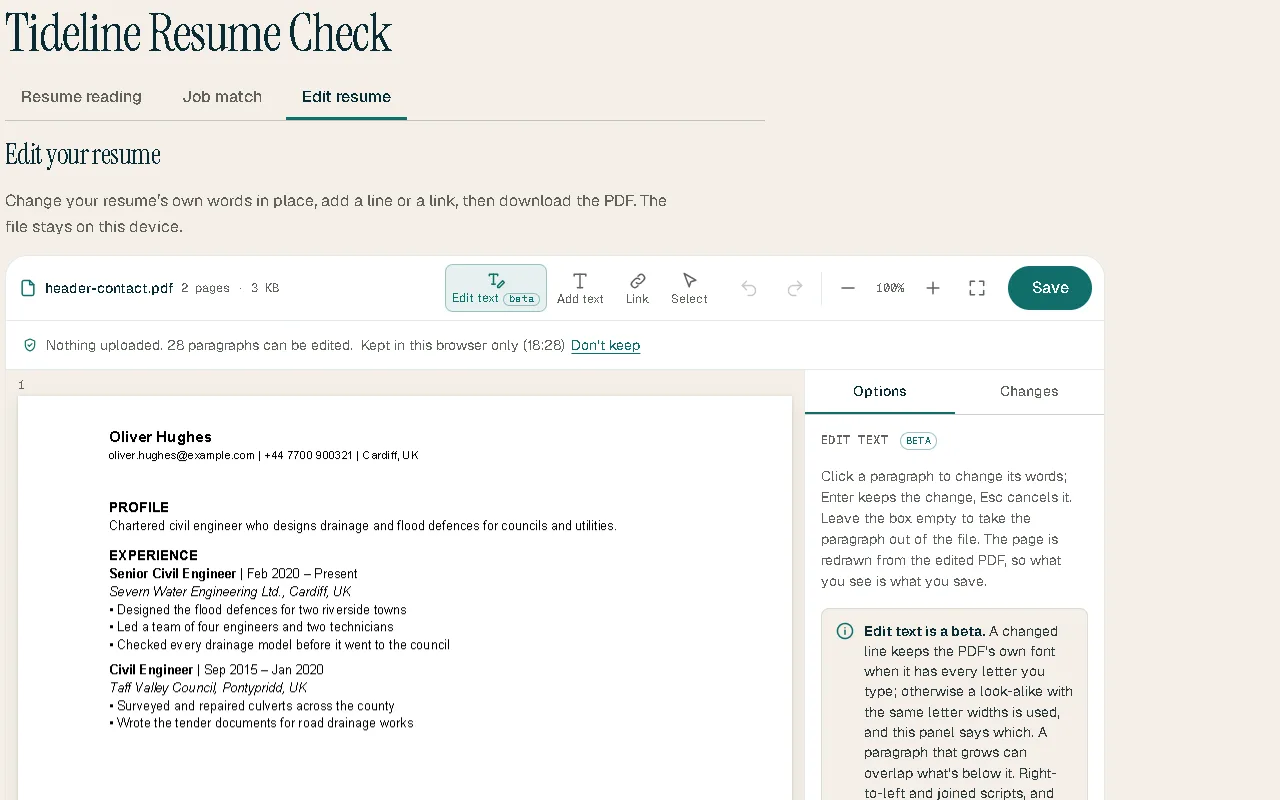
Change a line, add text or a link, and save a copy. Your original file isn’t changed.
-
A version per application
Save a version for each job and find it again beside that application.
-
Hidden fields
See the title and other hidden fields a PDF carries, and clear them before you send it.
-
Stays on your device
The file is edited in your browser. Tideline is told only that a version was saved, to count it.
How it works
- Open Resume Check and choose “Edit resume”.
- Open your PDF and make your changes.
- Review them under “Before you save”, then save the copy.
Good to know
It edits PDFs, not Word files. Text is redrawn in the PDF’s own font where the file has it; where it doesn’t, a look-alike is used and the page says so. Versions live in your browser, so they don’t follow you to another device.
In each plan
| Feature | Free | Tideline Pro | Tideline Pro Plus |
|---|---|---|---|
| Resume editor: versions saved for each application | 3 in all | Unlimited, up to 60 saves an hour | Unlimited, up to 60 saves an hour |
Questions
Is my resume uploaded to edit it?
No. Editing happens in your browser.
What are hidden fields?
Labels inside a PDF, such as its title, that hiring software can read. An old company name can linger there.
Can I check an edited version against a job?
Yes: “Check this version against the job” sends it to Resume Check.